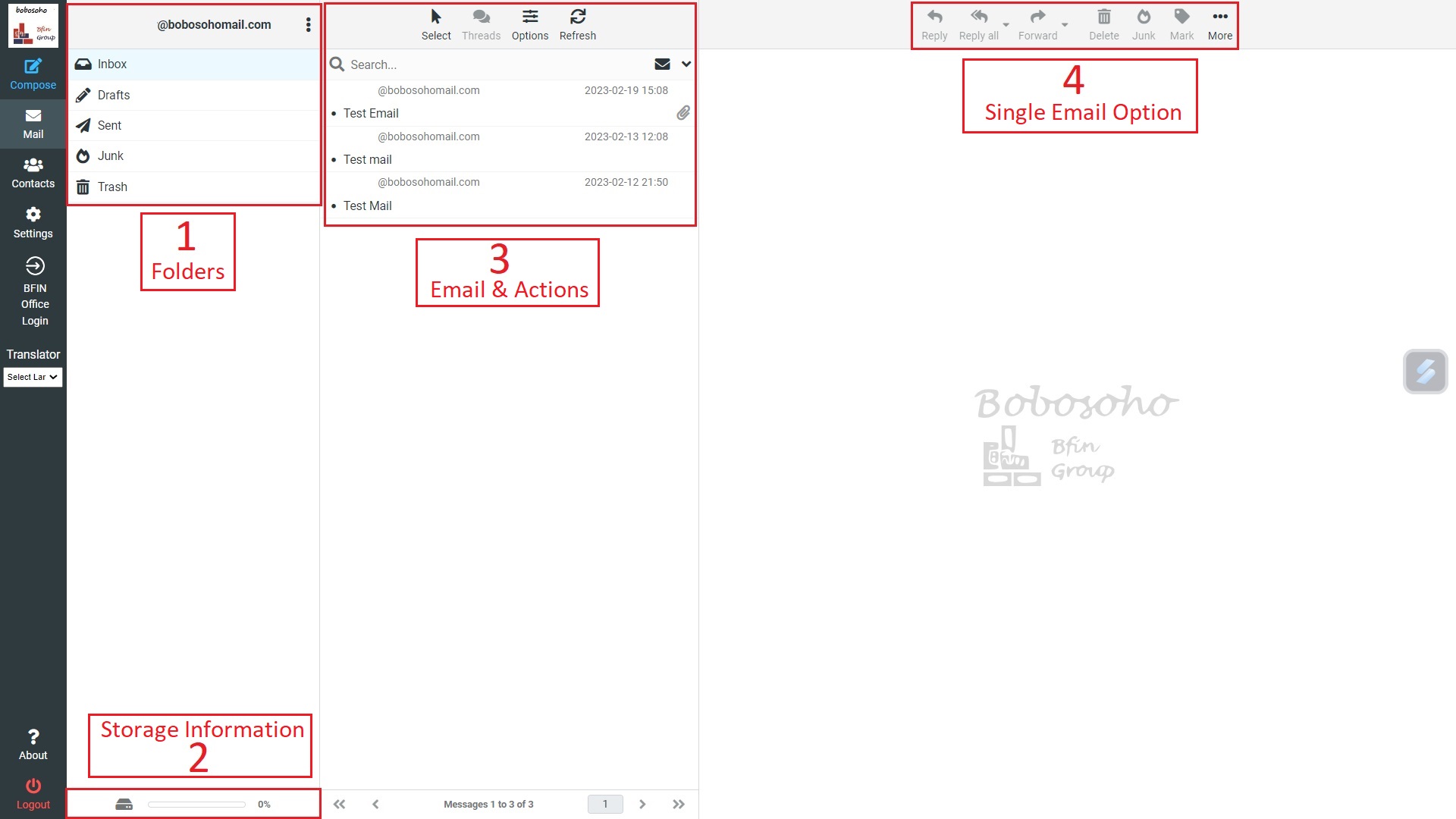
01. Folders
In the top header of the folder list, click on the three-dot icon ( ) then the Folder actions icon shows a list of folder-related actions. Most of the actions in the menu affect the currently selected folder.
1. Compact: This action will compress the folder size by finally deleting messages that have been marked for deletion.2. Empty: This action will delete all messages in the selected folder permanently. Be very careful with this operation as it cannot be undone. For security reasons, this action is only available for the Trash and Junk folders.
3. Mark all as read: This item will help to mark all unread emails as read.
4. Manage folders: This item will take you to the settings section where you can manage the mailbox folders. This is where you can create, delete, rename, or re-organize your email folders as per you want.
On the left side you see a hierarchical list of all folders in your mailbox, like Inbox, Draft, Sent, Junk, etc.
Folders can be used to file email messages by topic, sender, or whatever you choose. Incoming messages basically appear in the Inbox folder which is the first item in the folder list. There are some special folders that are used by the system to store sent Sent or deleted Trash messages and where not-yet-sent message drafts Drafts are saved. The number of unread messages in each folder is displayed at the right border of the folder list. Click a folder in the list to show the contained messages in the message list on the right. The currently selected folder is highlighted in the list.
Folders with hidden subfolders are indicated with a small [+] icon which can be clocked to expand or collapse the folder tree.
02. Storage Information
If your mailbox is limited by a maximum size, the storage indicator is located in the footer of the folder list and indicates the current usage of the available disk space. Move the mouse pointer over the percentage display to see the real numbers of your disk/storage usage.
03. Emails & Actions
If the new message is visible in your inbox, you can open it using a single click on a message. It will display in the preview right below the list. In order to open a message in full view or a new window, double-click it with the mouse. Selecting a message in the list will also activate toolbar buttons that offer further actions related to the selected message, such as replying, forwarding, or deleting it.
Select: Used to select the emails based on some conditions like All, Unread etc.
Options: Used to Sorting column, Sorting order, List mode change.
Refresh: Refresh email folder for new incoming messages.
Search: To search any email based on any related information. Also in right side here is the filter option for email search. It helps to create a filter and make a quick search.
04. Single Email Options
Reply: To send your reply to the sender of the email.
Reply All: To send your reply to the sender of the email AND any other people sent the message to or copied.
Forward: To forward the message to another address altogether.
Note: Whether you're replying to the sender, replying to all, or forwarding a message, you can always include additional emails in the recipient list.
Delete: To delete any message and this will by default move the message to the Trash folder and not delete it right away unless you do this for messages in the Trash folder. In order to immediately delete the message in first place, hold down the Shift key on your keyboard while clicking the Delete button.
Junk: To identify/mark opened message sender as junk.
Mark: This helps to mark opened message as read, unread, flagged or unflagged
More: Some useful options are inside More option. You will get here:
- Print this message: To print this individual email.
- Import: To import messages. You can upload mail using files in MIME or Mbox format. Multiple files can be compressed into zip archives.Maximum allowed file size is 16 MB in bobosohomail.com.
- Export: To export current email. This will export email as .eml format.
- Show source: To show the source of the email and other details as a text information.
- Move to...: To move message in a individual folder like inbox, junk, trash etc.
- Copy to...: To make a copy of message for a individual folder like inbox, junk, trash etc.
- Open in new window: To open individual message in a new tab.
- Create filter: To create a filter for further use of this sender and some others.