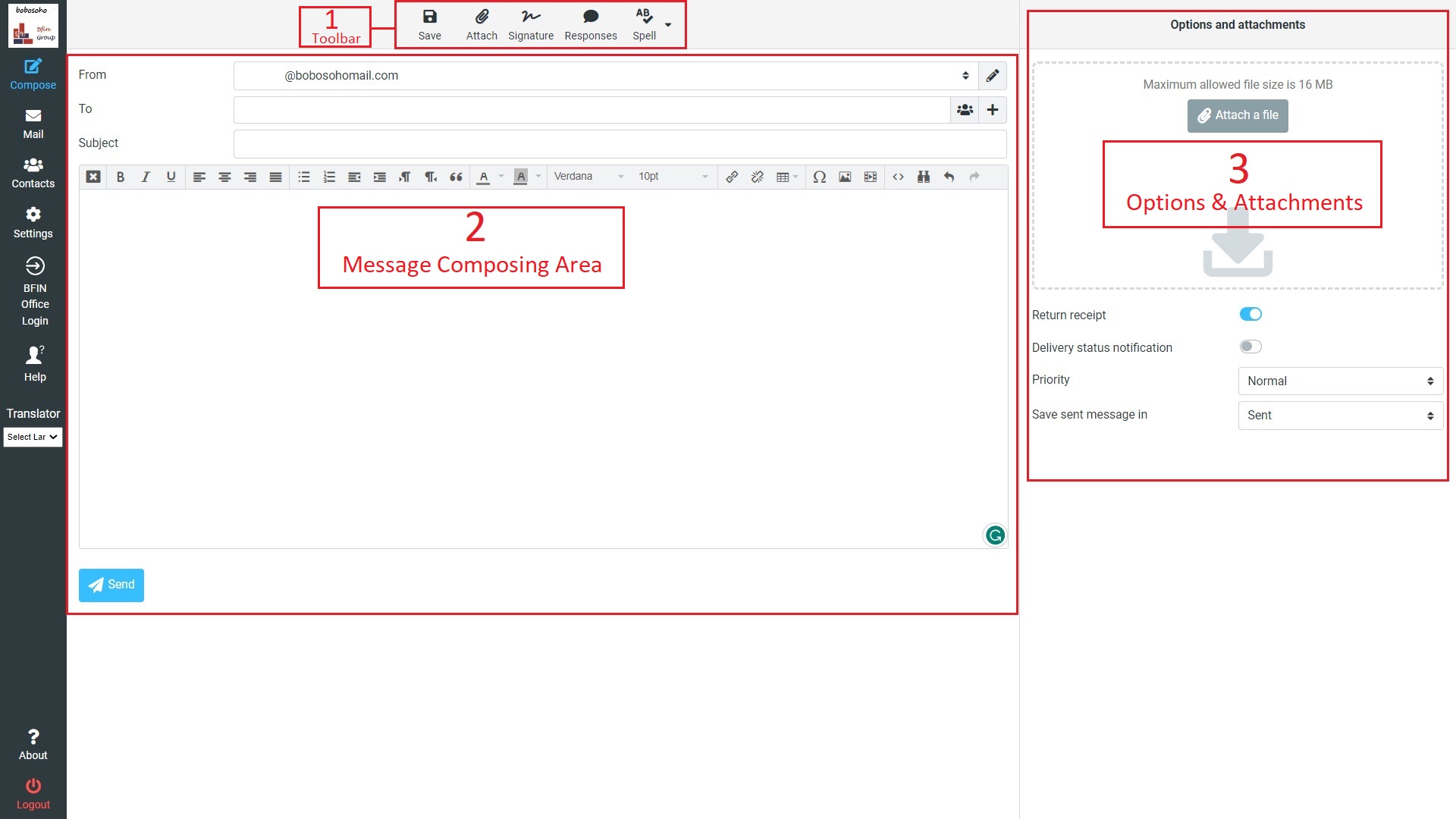
01. Toolbar
Save: In this option you can save your messages to draft folder.
Attach: You can easily attach files from this option for your mail, once you click on this option this will open your file explorer, just click the file for add attachment to mail.
Signature: If you have preset signatures, then you can add your signature by clicking this option. To create a signature Go to Settings menu from left menu bar. Press Identities, then click on your email and right side you will get signature option. Now you can create a signature for further use.
Responses: In this option, you can send some preset messages to various people with a single click. You can also create and edit responses from below options.
Spell: Bobosohomail offers very important features for typing messages, you can check your spells easily over 39 major languages that you are typing on message on compose options. This feature is available on the right of the toolbar. Once you click on the spell option the wrong words are underlined in red color, to fix the wrong spells just click on the wrong word it will suggest you the possible correct words, you just click on the correct word to fix the word.
02. Compose Messages
Enter at least one recipient address or select them from the address book, type in a subject and the message text and click the Send button in the toolbar when you’re ready to send the message.
Save it as Draft, if the message is not yet complete and you’d like to finish and send it at a later time. The email will be stored in the Drafts folder and can be double-clicked there in order to resume the composition.
Compose (HTML) Message
In Bobosohomail you can easily type your messages in HTML format, and you can also make HTML email templates on your own. There is some option you have to enable you to enjoy this feature. But it depends on your settings, the compose screen shows a simple text field to enter the message or a rich text editor with a toolbar that enables text formatting, bullet lists, image embedding, inserting source code, and many more.
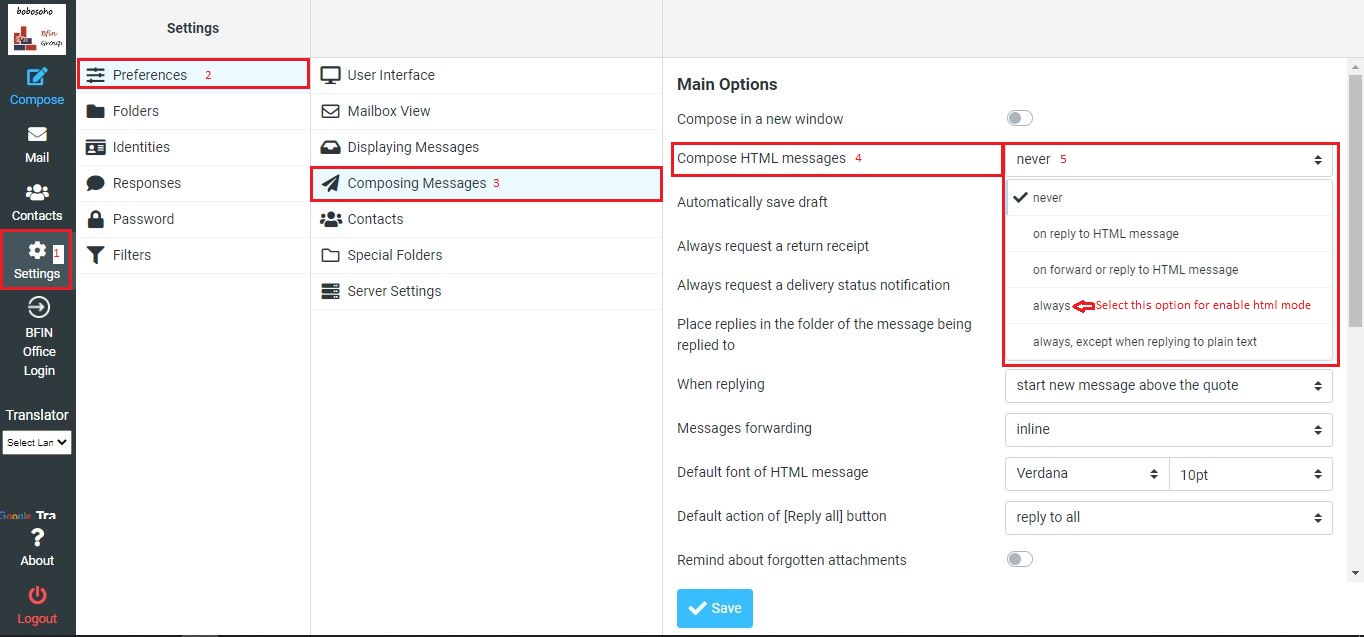
Once the feature is enabled then go to compose option/tools you can use those options from the toolbar as per your demand.
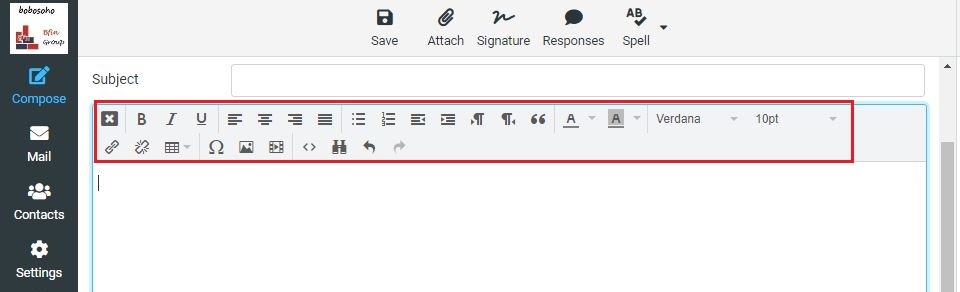
03. Options & Attachments
File Attachment: Here you can attach your files for sending. In bobosohomail you can attach maximum 16MB file per email.
Return Receipt: return receipt is an acknowledgment by the recipient's email client to the sender of receipt of an email message. You can enable/disable before send an email.
Delivery Status Notifications: Delivery status notification allows your e-mail clients to receive status messages when e-mail is delivered, relayed, or fails. If you want to allow your e-mail clients to make this request, you must enable delivery status notification. For different email server it could work or not.
Message Priority: In this feature, you can set the priority of the message that you are sending to receivers.
Save the sent message in: Select the folder where to save a copy of the message after sending it. This defaults to the Sent folder and can be changed here. Select don’t save to just send the message without saving a copy.