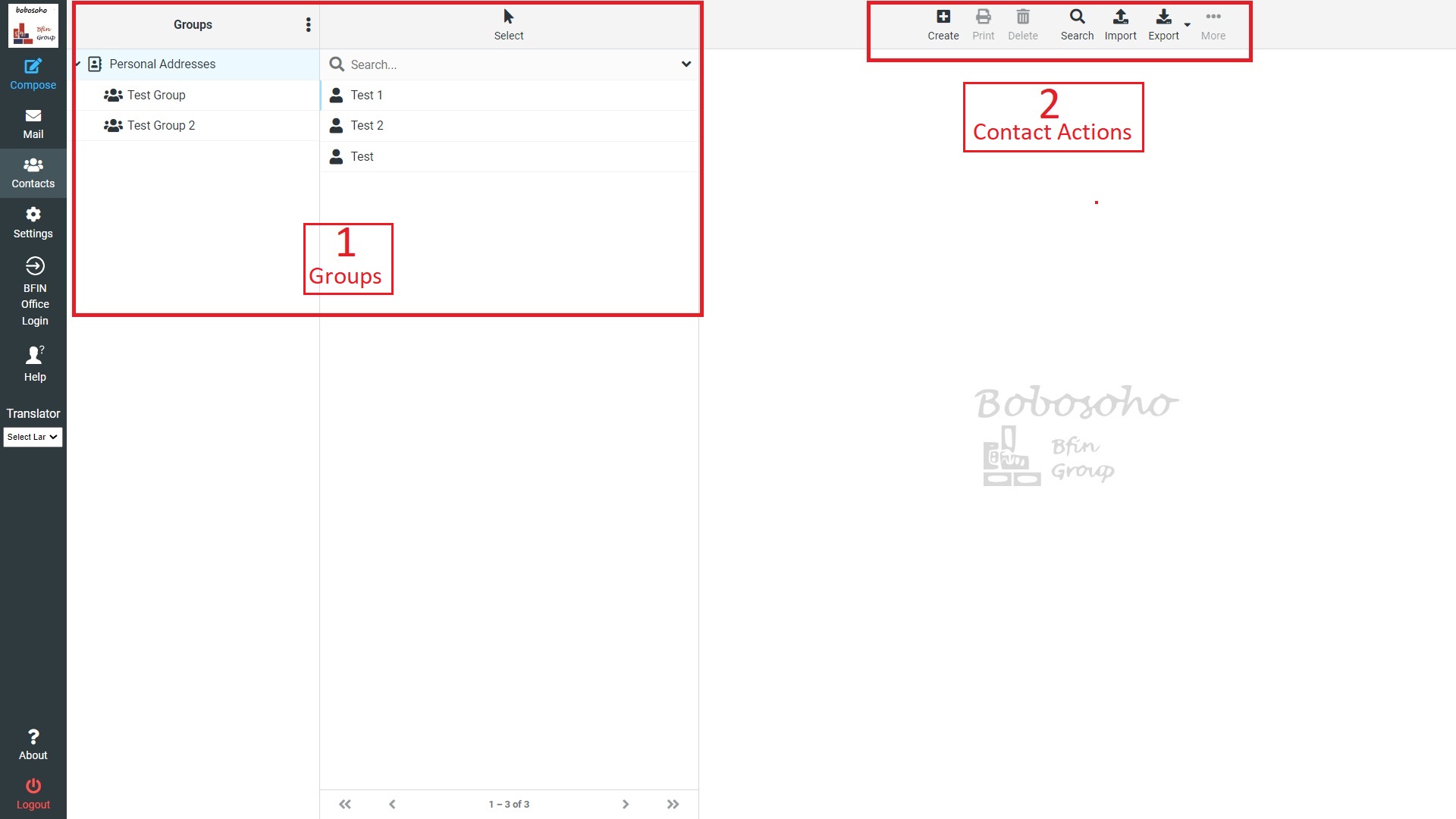
01. Groups
If you already find a group then you can use it as you own. Otherwise you can create different groups by clicking 3 dots at top.
Create a group: In order, you need to create a new contact group, first select the contact options. Then click on the 3 dot icon then Add a group then choose a name and click on save; now successfully you have created a contact group.
You can also edit and delete groups from here.
Create contacts: By select a contact group you can add contacts for that group. To crate contacts you have to click on create option. You will find it at top right or see above photo of this page and notice box no 2.
Add Contacts to Group: Contacts can be assigned or added to groups by dragging & dropping them with the mouse. Select one or multiple contacts in the list and drop them into the desired group. It’s as simple as that.
Remove Contacts from a Group: You can easily delete contacts from the group by selecting the contact which you want to delete, after selecting the contact just follow the toolbar of the top right you will find the option Delete. Click on the delete option the contact will delete permanently.
02. Contact Actions
Create: To create contacts for group.
Print: To print selected contacts.
Delete To delete selected contacts.
Import: To import bulk contacts from outer source. You can upload contacts from an existing address book. We currently support importing addresses from the vCard or CSV (comma-separated) data format. Maximum allowed file size is 16 MB. You can import contacts for your existing groups by Import group assignments options.
Export: To import bulk contacts for outer source.
More:
- QR Code: To create qr code for selected contact.
- Assign to group: To change and assign a new contacts group.
- Remove from group: To remove selected contacts from current group.